
← All WonderLister user guides
Format & Pricing decides how the item is sold — as an Auction or at a
Fixed Price — and what it costs. The choice of format changes which fields the section shows, so
set it first.
Where to find it
Open a listing in the editor and scroll to Format & Pricing, or click it in the
editor’s left-hand section list. The same controls appear in the
Select Format and Pricing dialog used from bulk edit.
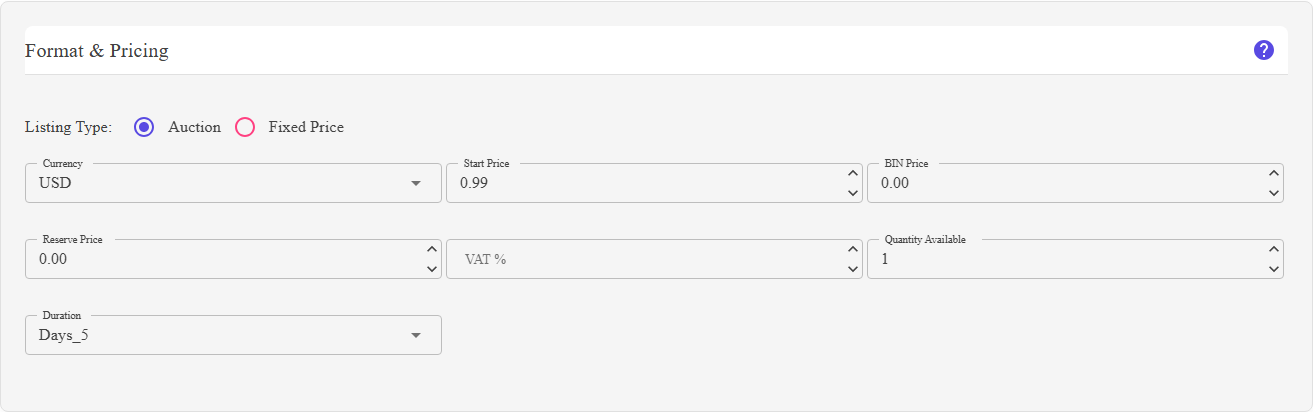
The Auction layout: listing type, currency, start price, BIN price, reserve price, VAT, quantity and duration.
Listing Type
Two radio buttons — Auction and Fixed Price. Everything below them
changes with the choice.
Fields shown for both formats
| Field | What it does |
|---|---|
| Currency | The currency the price is in. The list is the currencies the chosen eBay site allows. |
| VAT % | The VAT rate to show, between 0 and 100. Hidden when Hide VAT percent is on in your editor Preferences. |
| Quantity Available | How many you have. For an auction this is capped at 1 — an auction sells one item. |
| Duration | How long the listing runs. The choices differ by format: auctions offer eBay’s fixed run lengths, fixed price listings additionally offer Good ‘Til Cancelled. |
Auction only
| Field | What it does |
|---|---|
| Start Price | The opening bid. |
| BIN Price | Buy It Now — the price at which a buyer can end the auction and take the item immediately. Leave it at zero for no Buy It Now. |
| Reserve Price | The lowest price you will accept. Bids below it do not win. eBay charges for a reserve. Zero means no reserve. |
Fixed price only
| Field | What it does |
|---|---|
| Price | What the item sells for. |
| Original Retail Price | The list price, for eBay’s strike-through pricing. |
| Quantity Sold | How many have sold. Read-only — it comes back from eBay. |
Two fields lock on a live listing. If Do not update price on eBay is on in your
Preferences, the price box is disabled while the listing’s status is Active; the same
applies to quantity and Do not update quantity on eBay. These exist so a bulk edit or a CSV import
cannot quietly reprice items that are already selling. Turn the preference off to edit them.
Preferences, the price box is disabled while the listing’s status is Active; the same
applies to quantity and Do not update quantity on eBay. These exist so a bulk edit or a CSV import
cannot quietly reprice items that are already selling. Turn the preference off to edit them.
How to use it
- Pick the format — Auction or Fixed Price.
- Check the currency matches the marketplace.
- Set the price. For an auction, the start price, and a BIN or reserve if you want them;
for a fixed price listing, the price and how many you have. - Choose the duration.
- Set VAT if you are required to show it.
FAQ
Q: The price box is greyed out.
A: The listing is Active and Do not update price on eBay is on in your
Preferences. The same setting exists for quantity.
Preferences. The same setting exists for quantity.
Q: Quantity will not go above 1.
A: The listing type is Auction, which sells a single item. Switch to Fixed Price to
sell more than one.
sell more than one.
Q: Where is Good ‘Til Cancelled?
A: In the Duration list, and only for fixed price listings —
auctions have fixed run lengths.
auctions have fixed run lengths.
Q: Quantity Sold will not let me type in it.
A: It is read-only by design. It reports what eBay says has sold.
Q: There is no VAT box.
A: Hide VAT percent is on in your editor Preferences.
Q: I changed the format and my prices vanished.
A: The two formats show different fields — BIN and reserve belong to auctions, the
original retail price to fixed price listings. Switching back shows them again.
original retail price to fixed price listings. Switching back shows them again.
Support
For further assistance you can:
- Email [email protected]
- Use the Contact Us page inside the application
← Back to the User Guide index
Or go to Support, the FAQs, or contact us.