
← All WonderLister user guides
The Activity Log is the record of work WonderLister has done for you: every import, submission,
refresh, export and bulk change, with when it started, when it finished, whether it succeeded, and what went
wrong if it did not. When something you asked for has not appeared, this is the page that says why.
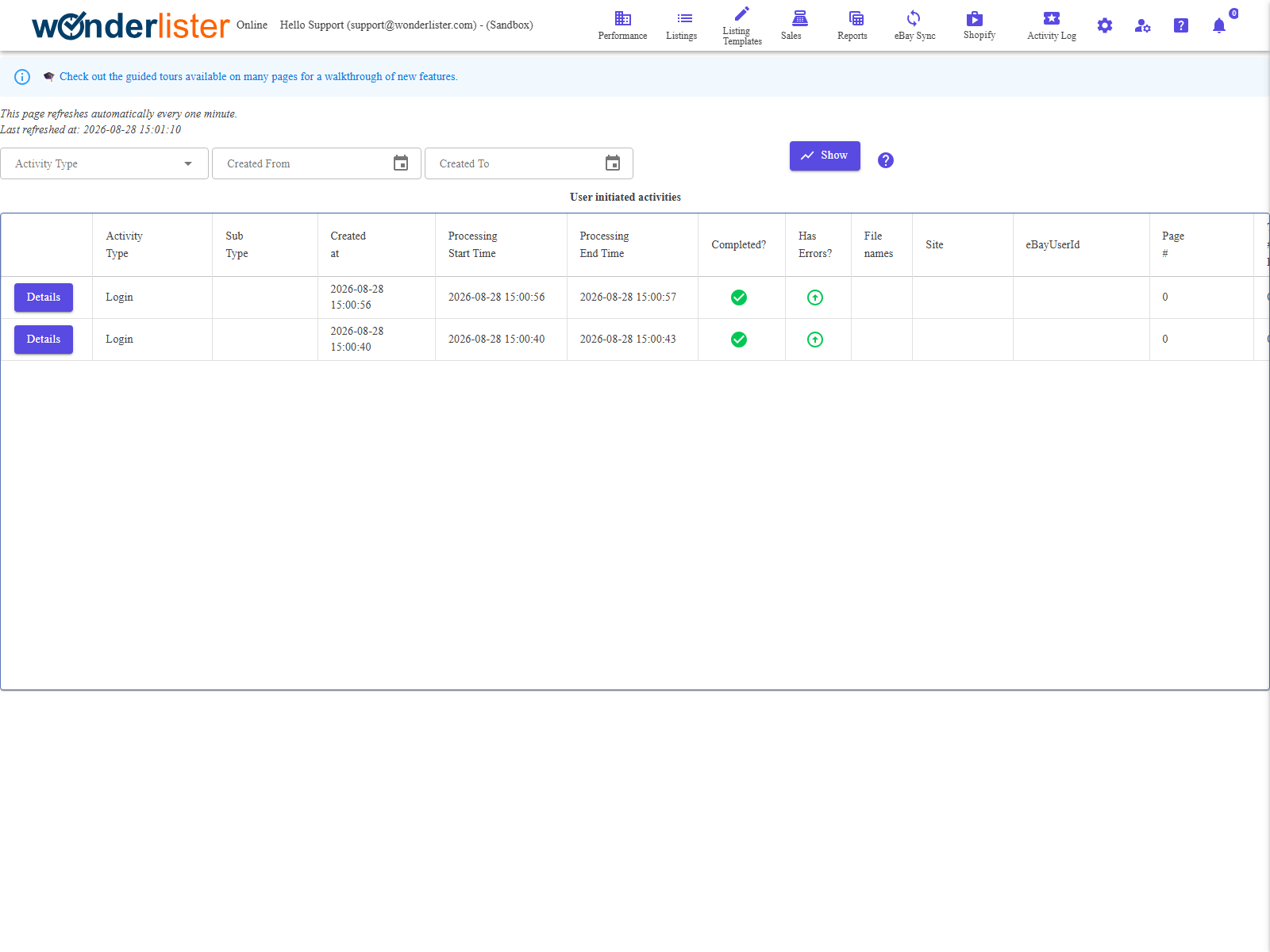
Work in progress will move on by itself; you do not need to keep pressing anything.
The filters
| Control | What it does |
|---|---|
| Activity Type | Narrows the list to one kind of work — an import, a submission, a refresh and so on. Clear it to see everything. |
| Created From | The earliest activity to show. Type a date or pick one. |
| Created To | The latest. A From after a To is refused with a message. |
| Include Summary of System Messages? | Desktop application only. Adds a table above the grid counting the background work still queued, by kind. The counts come from the local database, which the browser does not have. |
| Show | Applies the filters and reloads from the first page. |
The columns
| Column | What it shows |
|---|---|
| Details | Opens the full record for that activity, including every error it recorded. |
| Activity Type and Sub Type | What the work was. |
| Created at | When it was queued, in your local time. |
| Processing Start Time / Processing End Time | When it actually began and ended. A start with no end is work still running. |
| Completed? | A green tick for finished; a blue clock for scheduled — waiting for its due time, which is normal and not a fault; an amber mark for anything else, meaning still in progress. |
| Has Errors? | A red arrow when errors were recorded, a green arrow when it finished cleanly, and a neutral dash while it is still running and has not failed yet. Press Details to read them. |
| File names | The files involved, for imports and exports. |
| Site and eBayUserId | Which marketplace and which linked account the work was for. |
| Page # and Total # Of Pages | How far through a paged import eBay had got. |
| Item Count | How many records the activity handled. |
| Computer name and User name | Desktop application only — which machine and which Windows user ran it. |
Reading a run
- Set Activity Type to the kind of work you are chasing, and a date range around when you
asked for it. - Press Show.
- Look at Completed? and Has Errors? together. Finished with no errors is
a green tick and a green arrow. - Press Details on the row for the whole record, including the error text.
Large imports arrive as several rows rather than one — eBay returns them a page at a time, and the
Page # and Total # Of Pages columns show the progress through them.
The summary of system messages
In the desktop application, ticking Include Summary of System Messages? adds a table above
the grid with a row per kind of background message: the total, and how many are in progress, queued, or
scheduled. Scheduled means waiting for a due time in the future — a large scheduled count is normal.
FAQ
“Last refreshed at” line tells you when it last did.
later, which is not a problem. An amber mark on something hours old is worth reporting — open
Details and send us what it says.
Page # and Total # Of Pages columns show where it had reached.
widen the range by a day. A From later than the To is refused outright with a message.
support staff. Nothing you do on this page removes work that is queued — it removes the record of it.
Support
For further assistance you can:
- Email [email protected]
- Use the Contact Us page inside the application
When reporting a failure, open Details on the failing activity and include what it says —
it carries the error text we need.
← Back to the User Guide index
Or go to Support, the FAQs, or contact us.